
In response to popular demand and a very successful pilot in 2025, we're pleased to share that the University will be transitioning from Vevox to Mentimeter between February and August 2026.
You can get started straight away, simply go to https://www.mentimeter.com/auth/saml and log in with your emailand SSO to start creating your interactive slides. Alternatively, go to your usual Mentimeter login page and select the "log in with SSO option" at the bottom of the screen. To help you make the most of this full account, there is a wide range of Menti guidance and resources available, and you can also sign up for our monthly Mentimeter training sessions via Docebo.
What's happening to Vevox?
In August 2026, our subscription to Vevox will end, which will mean that your UoP account will revert to a free version. This does not have access to reports and is limited to the multiple-choice question type. If you need to keep a record of your questions or reports, we recommend that you start to download the data from these sessions well in advance of this deadline. You can then transfer your questions to Mentimeter as and when you need them. Please get in touch with cadi-digital@port.ac.uk if you have any questions about this.
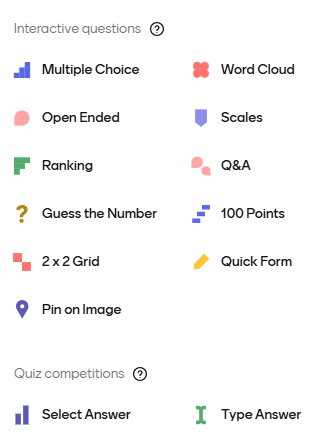
An example of the the types of questions you can ask your audience using Mentimeter: Multiple Choice, Word Cloud, Open Ended, Scales, Ranking, Q&A, Guess the Number, 100 Points, 2x2 Grid, Quick Form, Pin on Image, Select Answer & Type Answer.
FAQs
Please let us know if you have any questions to add to this list and we'll be happy to address them. Contact cadi-digital@port.ac.uk.
- From Mentimeter: Create your PowerPoint slides and embed these in Mentimeter. You can then add question slides before or after your deck of PowerPoint slides. You may find you need to allow third-party cookies in Mentimeter in order to see your slides. Embed a PowerPoint presentation into Mentimeter | Mentimeter Help Center
- From PowerPoint: Import individual Mentimeter slides into a PowerPoint presentation using the desktop app. How to use the PowerPoint Add-in | Mentimeter Help Center
Vevox have confirmed that our accounts will revert to the free version in August. This means that only sessions with multiple choice questions will remain available, and no existing report data will be accessible. Therefore, please make sure that you download the sessions that you would like to keep before August.
There's no automatic way to do this. Instead, the questions will need to be recreated in Mentimeter manually. Most Vevox question types have a close correspondence to a question type in Mentimeter, so it should be a straightforward process.
Vevox questions and Mentimeter equivalents:
- Multichoice => Multiple Choice
- Word Cloud => Word Cloud
- Text => Open Ended
- Ranking => Ranking
- Pin on image => Pin on Image
- Rating scale => Scales
- Numeric => Guess the number
- XY plot => 2x2 grid
- Leaderboard => Quiz competitions
- Q&A => Q&A
If you have lots of Vevox sessions that you want to keep, you can manage your workload by downloading your sessions from Vevox, and recreating them in Mentimeter as and when you need them. In Vevox, open the session you require, click Data, then Download the Data report, as in the video below.
Downloading your session's questions from the Data section will not save the images you've used. To do this, select the relevant questions from the main session page and click export. The images will be saved in a resources folder, as in the video below.
We've signed a three-year contract with Mentimeter, which means we can rely on having access to the tool until at least 2029. While no software arrangement can be guaranteed permanent, this contract gives us stability for planning and using Mentimeter with confidence.
Students can access the results to a Mentimeter presentation on their devices immediately after the session has ended. However, if you'd like them to be able to view the presentation slides and results in days or weeks afterwards, you'll need to share the presentation link after the session.