
Introduction
The CADI team, in close collaboration with academic colleagues have designed new Moodle Module Design tools to help academics create clear, consistent, and student-centred modules for the Connected Curriculum.
Many Connected Curriculum modules will be rolled over from existing modules and adapted. However, new 120 credit modules will likely be created from scratch combining resources from previous modules.
Important
To help CADI colleagues facilitate the process of rollover or redesign, we strongly encourage Module Leaders to complete the following simple spreadsheet before 20th February.
New CC modules will be processed in Moodle between 23-27th February for all modules completed in the spreadsheet.
Please tell us whether you would like:
- a rollover or a redesign (a blank module)
- your previous Moodle module link if you’d like a rollover
- a weekly module layout or the new themes and weeks layout (more information)
The focus of this guide is:
To provide staff with instructions on using the new module design tools in Moodle. It covers how to use features like the new Module Assistant bar for automated setup of module structures by uploading a spreadsheet and the Sharing Cart for easily duplicating resources between modules.
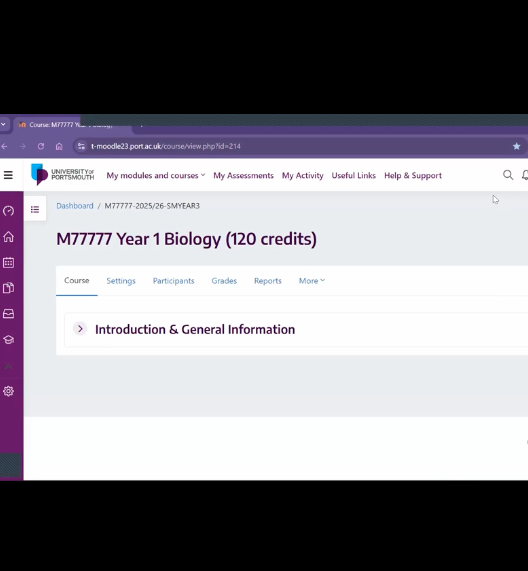
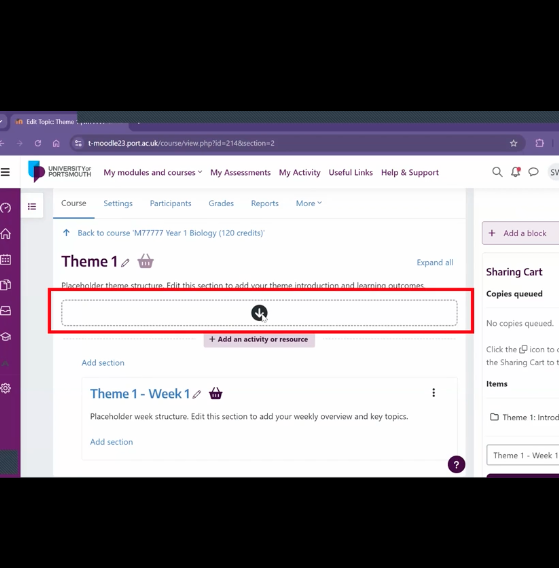
The following short introduction videos walk you through the new tools in Moodle. Don’t worry, your friendly CADI colleagues can help you master these simple new tools.
If you have any questions or support requests please contact cadi-digital@port.ac.uk
Use the menu on the left hand side to navigate through this guide.
What are the Moodle Module Design tools?
The Moodle Module Design tools help you create a structured module layout quickly and consistently.
The tools consist of four new features in Moodle:
- Flexible Sections – A new Moodle course format option which allows nested sections (Weeks and Themes) and is required if you'd like to use the Module Assistant.
- Module Assistant – a way of quickly adding a structure to your module for you to be able to fill in with your content, either new or imported from another module.
- Section Summary – a Moodle feature which helps you add key context to Moodle activities, what's expected of students, how long activities will take etc and surface these details to students in your module.
- Sharing Cart – A convenient way to move content between Moodle modules.
The tools are accessed within Moodle, on your module page, and combined, they allow you to:
- Create a new Connected Curriculum ready Moodle module organised by Weeks or Themes (explained in subsequent pages)
- Apply and create this structure quickly and let you concentrate on the module content.
- Easily and consistently help your students understand what to do, when, and why.
All these tools are designed to support good curriculum design, not to add extra work, and are opt-in. If you choose you can continue to create your content in a way which is familiar to you, and use individual features as you see fit.
Understanding Weeks and Themes
A new-to-Moodle concept that these tools make use of is, Module Weeks and Module Themes. Before creating anything in Moodle, it is important to understand the difference between these so to make a choice how you'd like to lay out your module.
Watch this video which covers the differences between Weeks & Themes:
This is the most important decision you will make, because it shapes how you design and how students experience your module.
What is a Week?
A Week represents a block of teaching that usually aligns with the academic calendar (for example, Week 1, Week 2, Week 3). Students experience Weeks as a timeline.
Each Week's content answers the question: "What do I need to do this week?"
What is a Theme?
A Theme is a way of grouping related Weeks under a shared idea, topic, or project. Students experience Themes as meaning-based groupings.
Each Theme's content answers the question: "What is this part of the module about?"
Why this matters for students
A clear structure helps students to:
- Find learning and teaching materials quickly
- Understand how learning builds across the module
- See how activities connect together
- Plan their time more effectively
This is particularly important for commuting students, part-time learners, and students accessing Moodle on mobile devices.
Choosing the right structure for your module
There are two main ways to structure your Moodle module using these tools. Your choice depends on how your teaching is organised and how you want students to navigate your content.
Consider which pattern best matches your module design:
Week-based modules (Structured with weeks only)
A Week-based structure works well when:
- Teaching follows a regular weekly pattern
- Each teaching week stands largely on its own
- The module is smaller or more linear
Students see a simple list of Weeks, each might include: Short Week overview, Pre-session activities, Session activities, Post-session activities
Theme-based modules (Structured with Themes which contain weeks)
A Theme-based structure works well when:
- Learning and teaching materials is organised around topics, projects, or questions
- Several Weeks contribute to one larger idea
- The module page would otherwise be very long and complex for students to navigate
Students see clear topic groupings, with Weeks nested inside each Theme. This helps reduce scrolling and supports understanding of how learning connects.
Creating your module using a CSV file (recommended)
Uploading a CSV file is the easiest and recommended way to create a new module structure.
This approach is especially useful if you are creating a new module, redesigning an existing module, planning with colleagues, or working away from Moodle. You do not need any technical skills to use this option.
Begin by watching this short video explainer of the CSV file module creation method:
What is a CSV file?
A CSV file is a simple spreadsheet file that can be created using Microsoft Excel. You can think of it as a planning document that Moodle can read. If you can type text into Excel, you can create a CSV file.
Why use a CSV file?
Using a CSV file allows you to:
- Plan your module structure offline
- Focus on learning design before building the module
- Create a complete structure in one step
- Save significant set-up time
- Reuse or adapt in future years
For most staff, this will be the most efficient way to get started.
How the CSV structure works
The CSV file uses two columns only:
- Column 1: the type of section (Theme or Week)
- Column 2: the title or description students will see
Moodle reads the file from top to bottom and builds the module in that order. You are essentially writing an outline of your module.
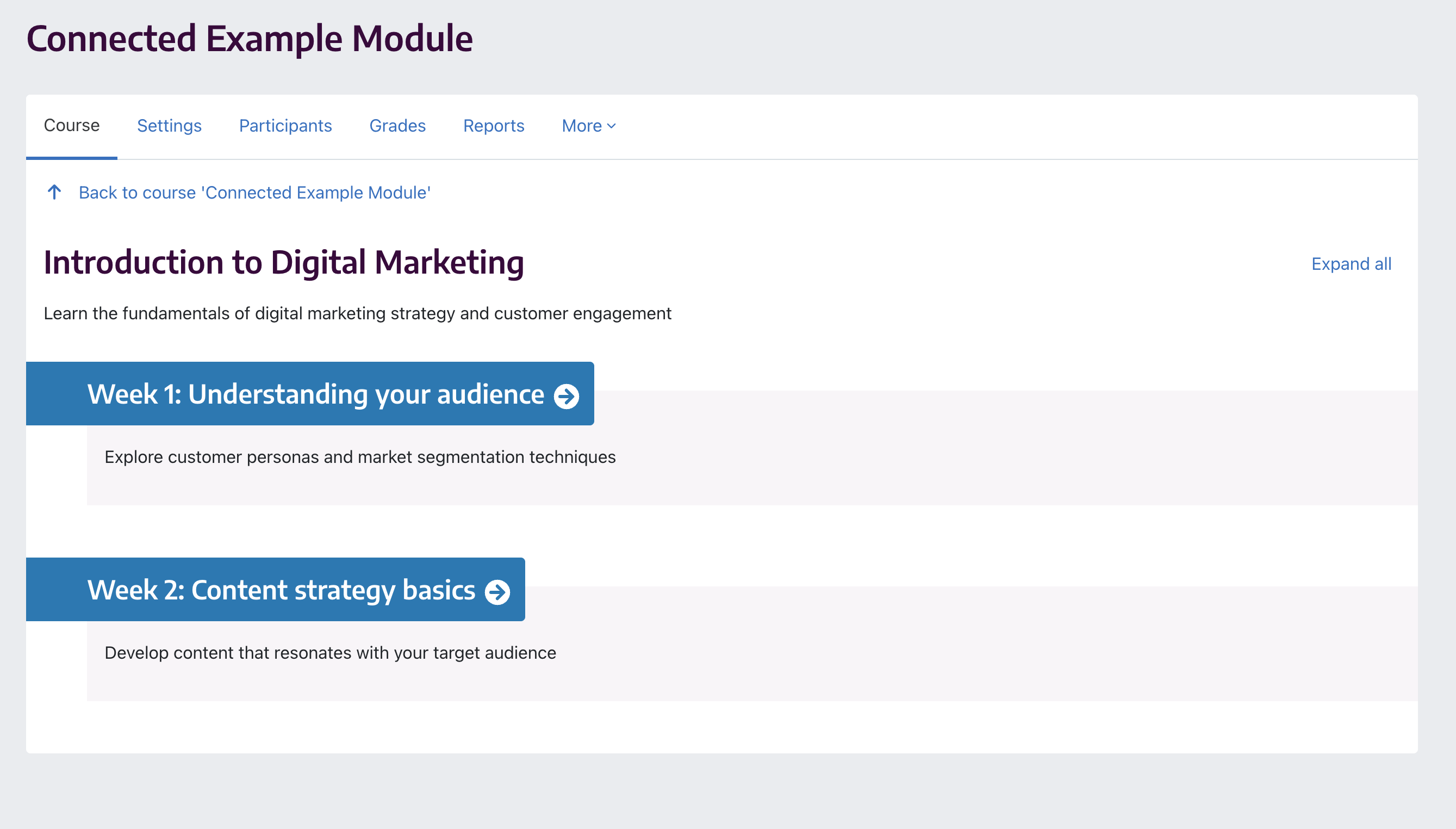
Moodle reads the file from top to bottom and builds the module in that order. You are essentially writing an outline of your module. The image below shows how the example CSV would display once the Assistant has created the structure in Moodle:
Creating a CSV
The Moodle Assistant will work out what format you want your module in from how you lay out the CSV file.
Including a Theme row for example, is enough to let the Assistant know that's what you want to do.
If you do something that's not quite right, don't worry you won't break Moodle, but you may find that some of the elements you want haven't been created.
It's important to check the preview in Moodle before you click Create to double check the structure is how you want it.
For a Theme-based module:
- Add a row with Theme and the Theme title
- Add a Description row explaining what the Theme is about
- Under that Theme, add Week rows
- Add a Description row for each Week
Think of this as telling the story of your module: Theme = what this section is about, Week = what students focus on at this point
For a Week-based module:
- Use Week and Description rows only
- Do not include Theme rows
Moodle will create a simple list of Weeks, each with a short overview.
Uploading your finished file to Moodle
Once your CSV file is ready:
1. Open your module page and turn Editing on
2. Locate the Module Assistant bar
3. Open Quick add & choose Structure from file

4. Upload your file by dragging it to the upload box, or clicking and browsing for it on your computer.
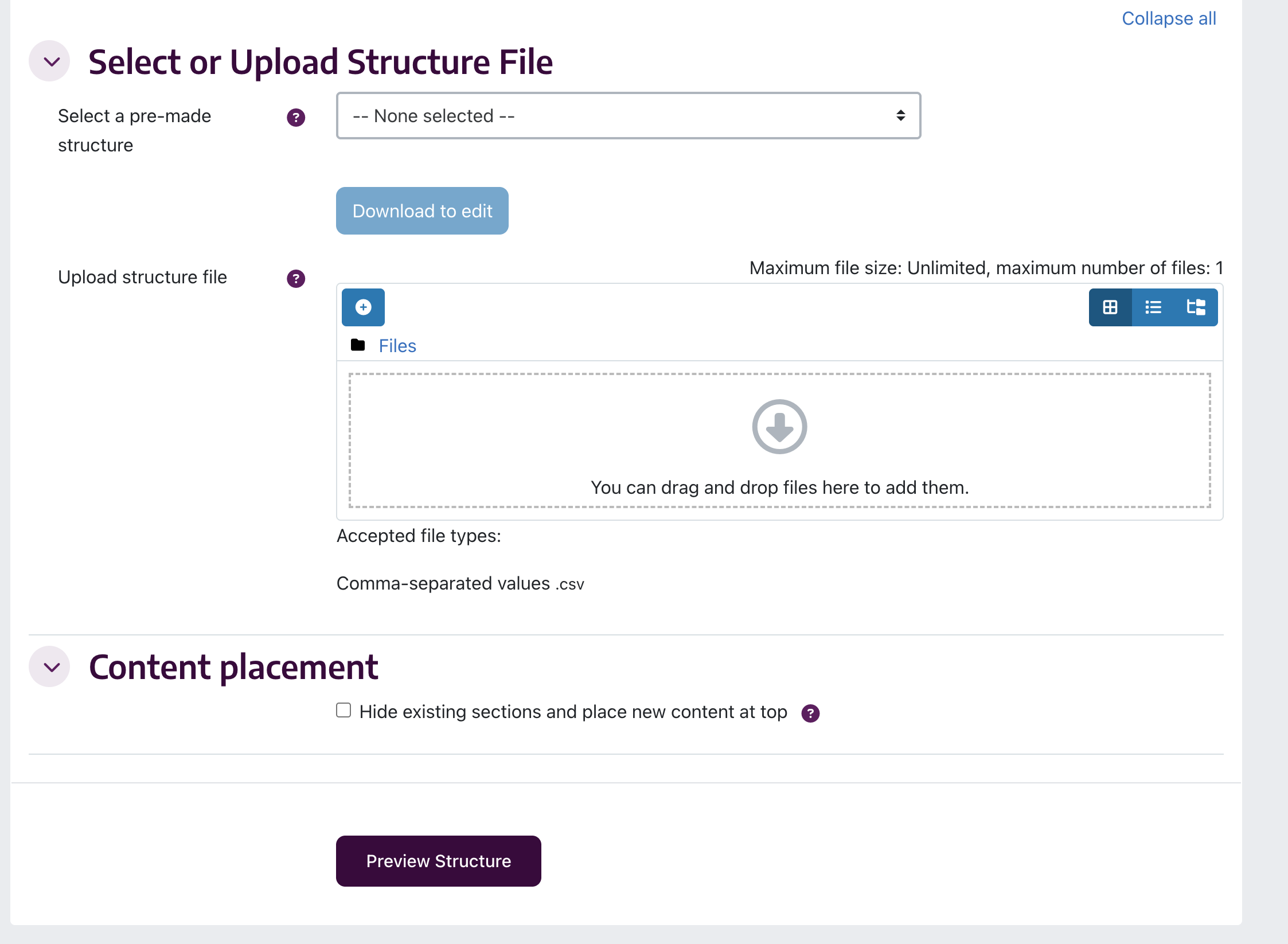
5. Click Preview Structure
6. If you're happy with the preview click Create (This process may take a couple of minutes so be prepared to wait for the confirmation box).
You will always see a preview before anything is created in your module.
After uploading your Structure
After the structure is created, you can:
- Rename any Theme or Week
- Edit descriptions
- Add or remove Weeks later
- Make small additions using Quick Add (detailed next)
Nothing is fixed or locked. The CSV simply gives you a strong starting point.
Adjusting your module directly in Moodle (Quick Add)
If you prefer to work directly in Moodle, or if you want to make small changes after uploading a CSV structure, you can use the Quick Add options in the Module assistant.
You do not need to use every option. Many staff will only use Quick Add occasionally.
When should I use Quick Add?
Quick Add is useful when you want to:
- Add a small number of extra Weeks or Themes
- Make adjustments while reviewing your module
- Extend an existing structure
If you are creating a full module from scratch, uploading a CSV file will usually be quicker.
Using Quick Add (at a glance)
- Open your module page
- Turn Edit mode on
- Open Quick Add in the Module assistant
From here, you can add Themes, add Weeks, or apply dates to already existing sections.
A note on flexibility
Anything created using Quick Add can be renamed, edited, or adjusted later. The tools are designed to support you, not to lock you into decisions.
Moving existing content with Sharing Cart
Moving content between your old module site(s) and your new Connected Curriculum module is made a little easier with the addition to Moodle of the Sharing Cart.
What is Sharing Cart?
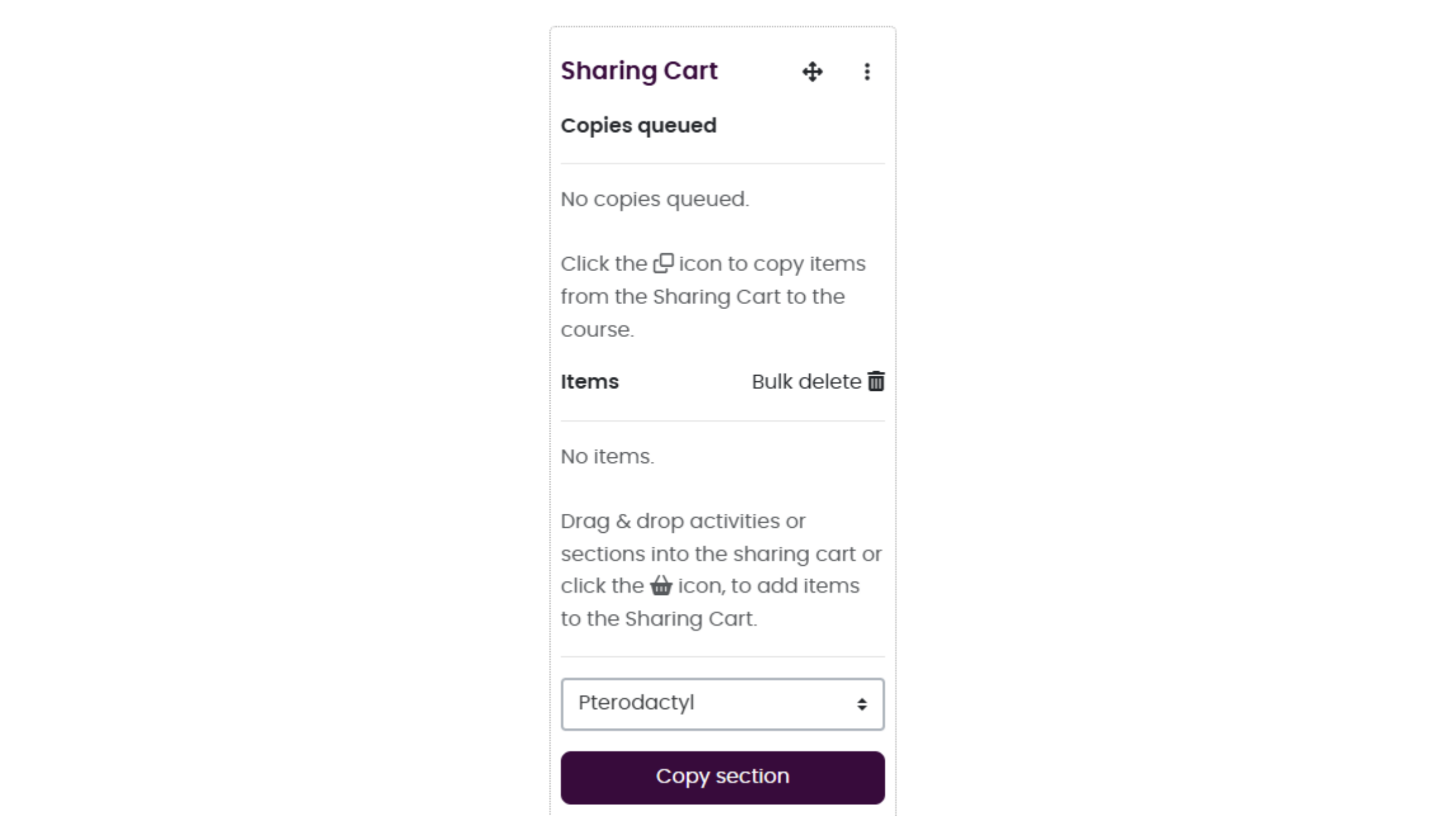
Sharing Cart is a tool that allows you to move content between Moodle pages easily. Activities and content can be "shopped" from one (or multiple) page(s) to another.
Watch this short video to get a feel of how it works before you continue with the guide.
Adding Sharing Cart to a module
Sharing cart can be found (or added if it's not there) in the block drawer on the right-hand side of your Moodle page.
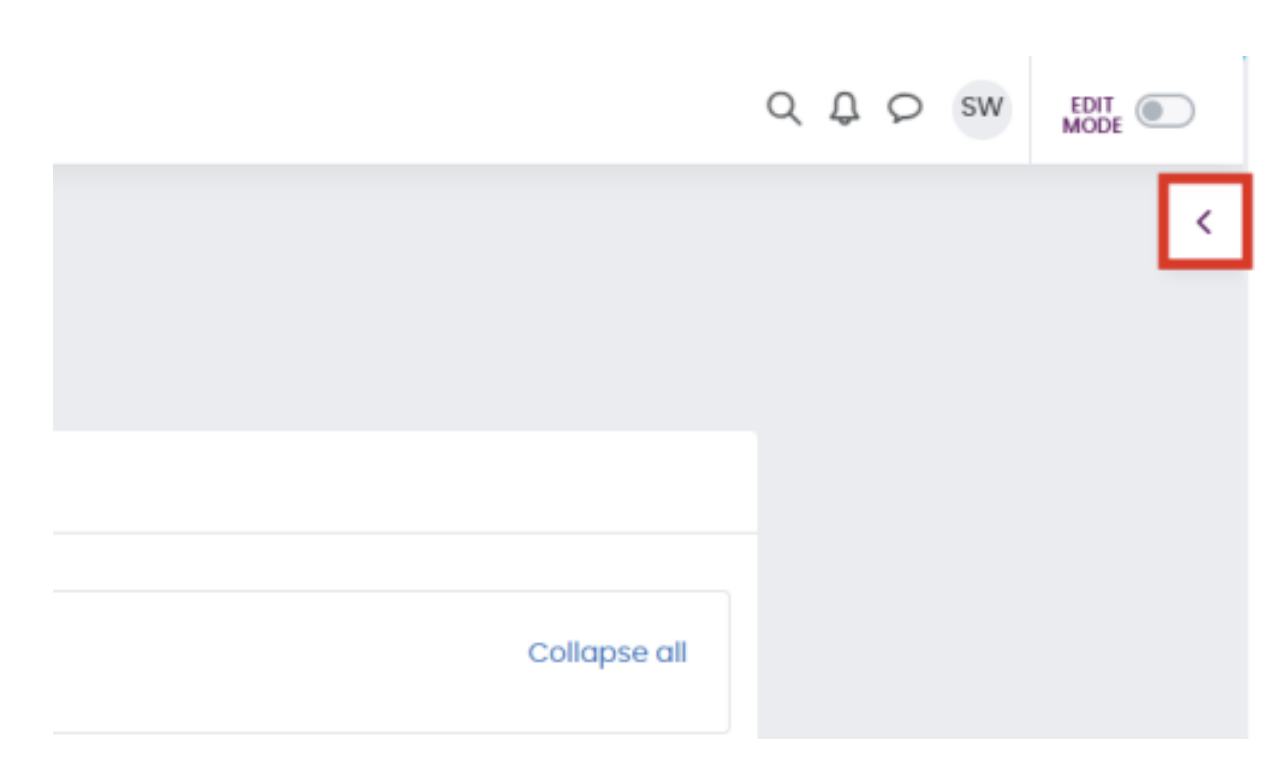
- To add it, make sure editing is on, and open the drawer.
- Click Add a block and find Sharing Cart in the list. Sharing Cart will appear in your block drawer.
How to copy module content using Sharing Cart
1. Go to a Moodle page that has activities you want to copy – Turn Editing on.
2. Add Sharing Cart to the block drawer if not present (as previously described).
3. Find the content you want to copy and click the shopping basket icon next to it.
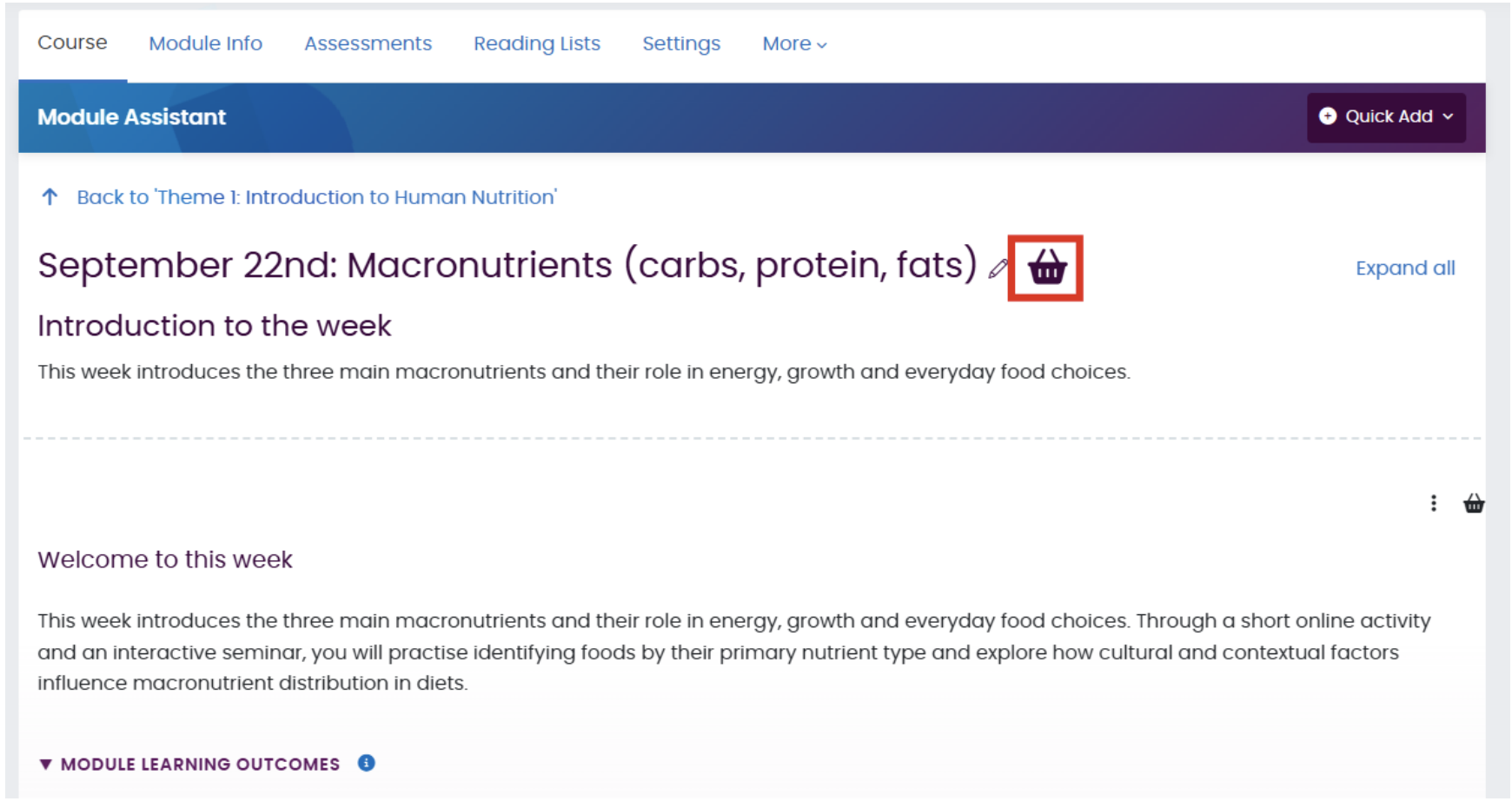
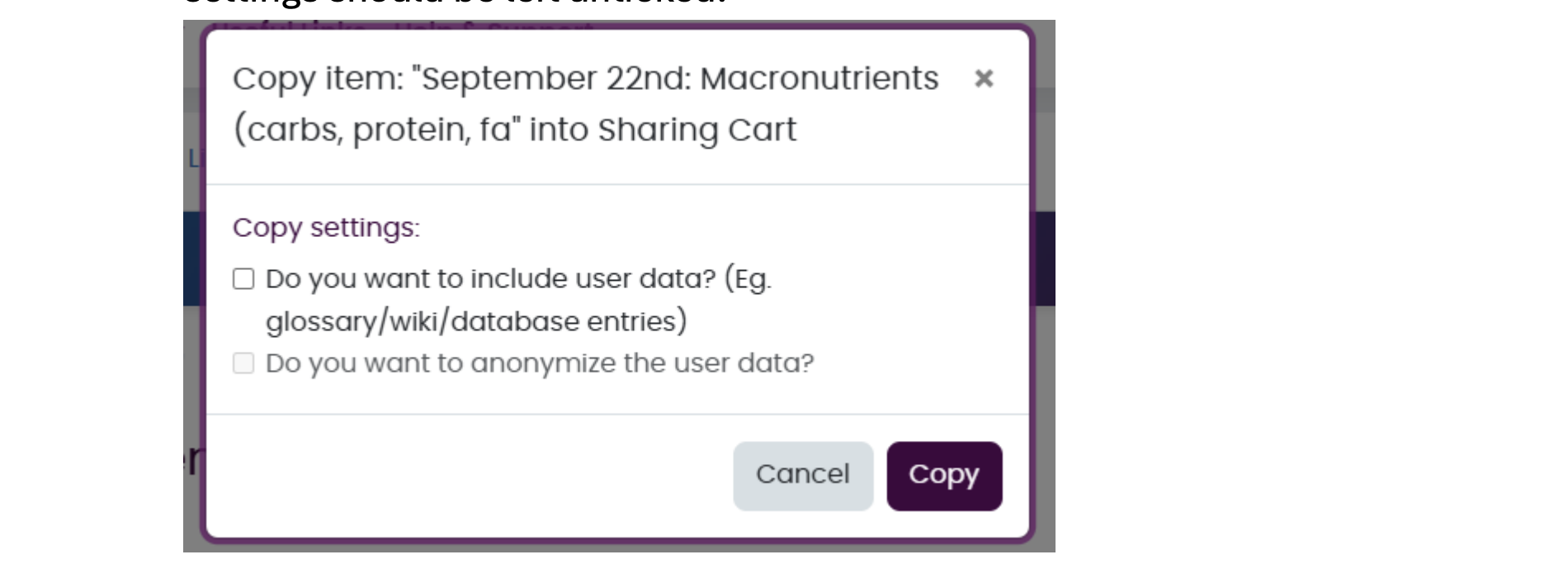
4. Click Copy to move the content to the Sharing Cart. In most cases the copy settings should be left unticked. The content will appear in the Sharing Cart block ready to be copied into the course. You can continue to add items to the cart on this page, add items from other pages or navigate to the destination page.
Copy content into your Module using Sharing Cart
Before you begin, note that this tool works best when a Moodle page has sections for the content to be pasted into, so add these first, you can add blank Weeks or Themes with the Quick Add feature on the Assistant Bar.
1. Go to a Moodle page where you want the content to be pasted – Turn Editing on
2. Add Sharing Cart to the block drawer if not present. Sharing Cart will remember the items you copied, even if the block isn't present on the page.
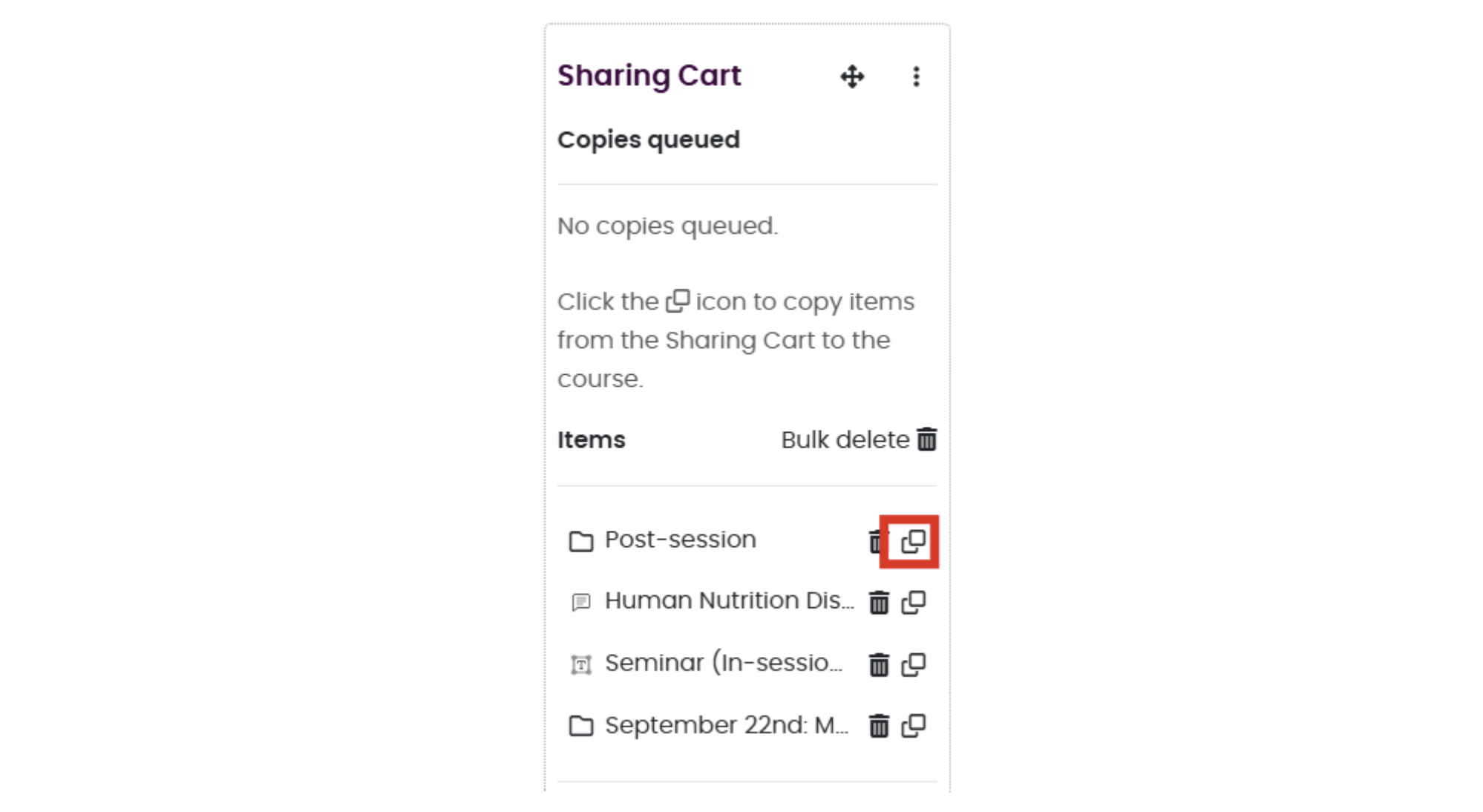
3. Find the item you want to copy into the course page.
4. Click the copy icon next to the item you want to add to your module.
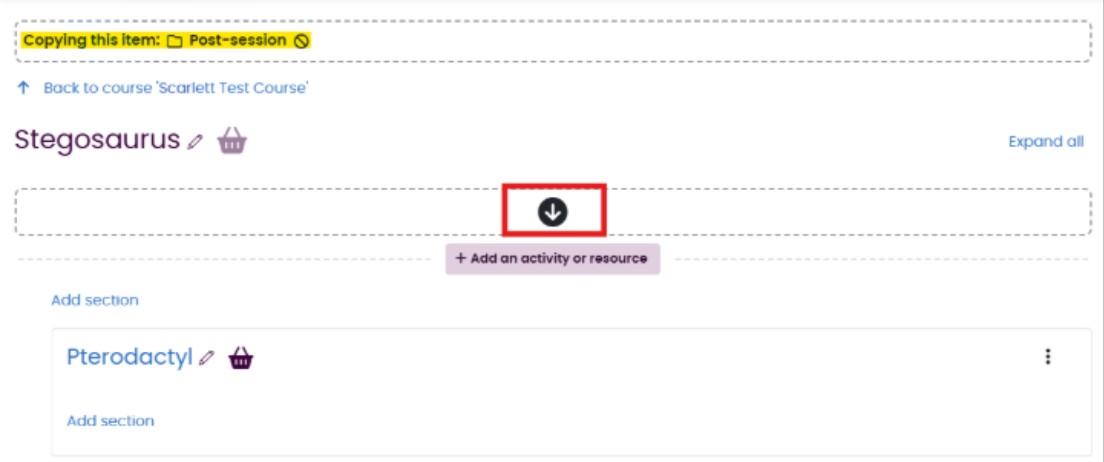
5. Back on your module page, Click the down arrow within the page where you want to copy the content into.
6. A box will appear asking if you are sure you want to copy and allowing you to unselect anything you do not want copied into the course. Click Copy to perform the action.
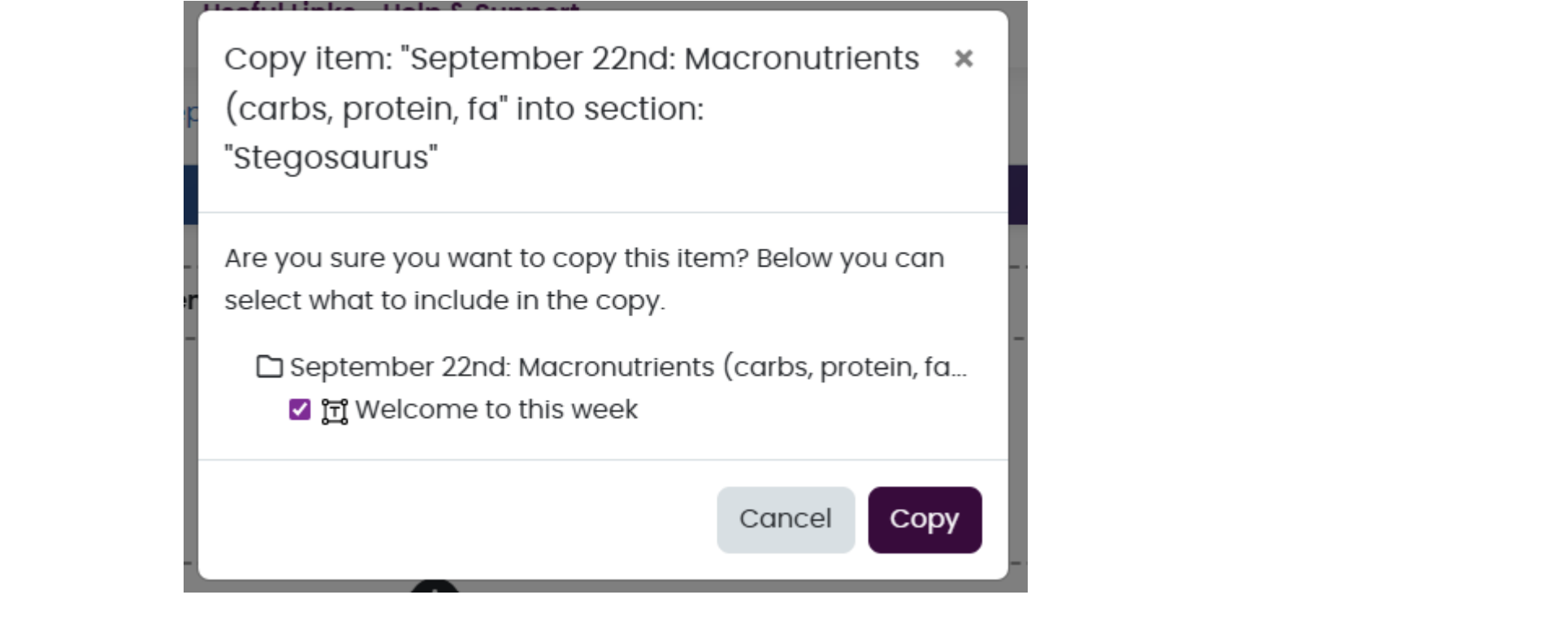
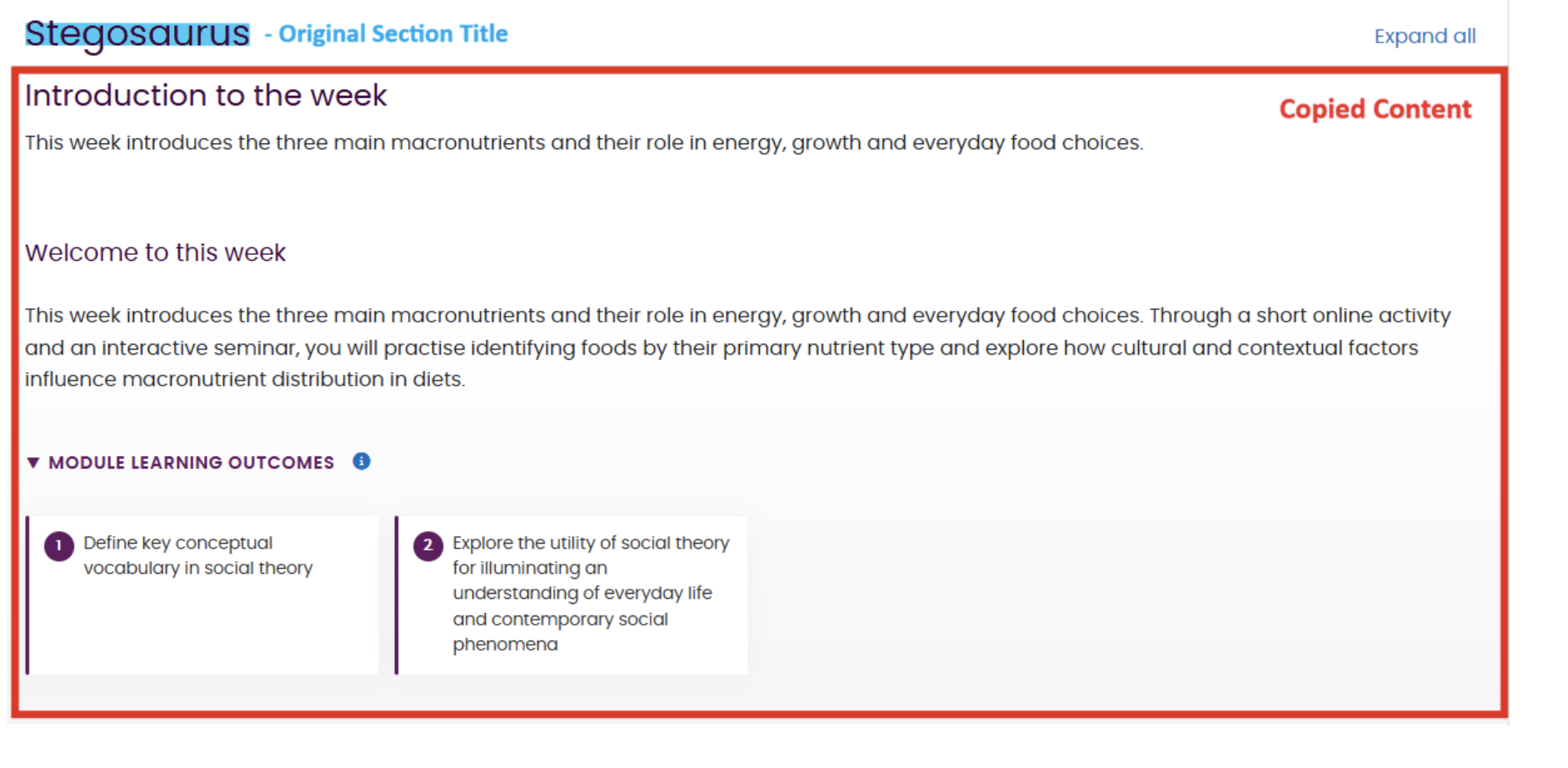
The content will copy onto the page after which it can be amended as usual within Moodle.
Using the Moodle Section Summary
The section summary is a new Moodle resource. Found in the Activity and Resource selector you’re used to, it allows you to create two different types of information summaries to help give students context around the learning in your Moodle modules, one for Weeks and one for Activities.
This tool aims to provide learners with the information they need to see, displayed in a way which is easy to understand. It is also designed to make it easy for you, as your design your Moodle module to add this information quickly and easily, without worrying about the layout or accessibility of the information.
Adding the Moodle activity for either Summary type
The process for adding either type, Week or Activity is the same. Click Add an Activity or Resource and select Section Summary from the Activity Chooser.
Week Summary
If you want to add any of the following information to the top of your Week section in Moodle:
- An introduction to the Week.
- The module learning outcomes which this week’s content will cover
Then you might want to try using a new Moodle Week Summary.
How to use a Week Summary
Within the settings page for the Section Summary, choose Week from the dropdown under Section type.
Give the summary a descriptive title. Usually for a week summary, this going to be something as simple as “Welcome to the week”, but of course you are able to name it whatever suits your content.
After you’ve added the title, you are able to use the Moodle text area to add a description/instruction for the week’s activities. You may want to include key themes or what the students should expect to learn.
The form then allows you to associate the week’s content with any of your Module Learning outcomes which have been automatically populated. Choose the appropriate outcomes, and they will show in a collapsible section on your module to help students understand what the learning in this section helps them achieve.
When you’re ready to see what it looks like, click Save and return to course and you’ll see what your students will see, which in the case of this example looks like this:

Activity Summary
If you’d like an easy way to present information about activities in your module, in an easy to use and consistent way for students, you might want to consider using an Activity Summary.
You can also visually associate one or more Moodle activities directly beneath an Activity Summary. For example you might want your learners to complete a quiz and then, discuss it in a forum. Using an Activity Summary you can set the activity up, and provide the Moodle resources required to complete it, all in one place.
You can use this mode to add any of the following to your module:
- An introduction/Instructions for the activity
- A heading/icon to denote an activity in your module
- The expected duration of the activity
- What your students should learn as a result of doing the activity (Learning objectives)
- Whether it’s a group or individual activity
- Whether it’s Synchronous or Asynchronous
- What Learning Types this activity covers
How to use the Activity Summary
Add a Section Summary, within the settings page, choose Activity from the dropdown under Section type.
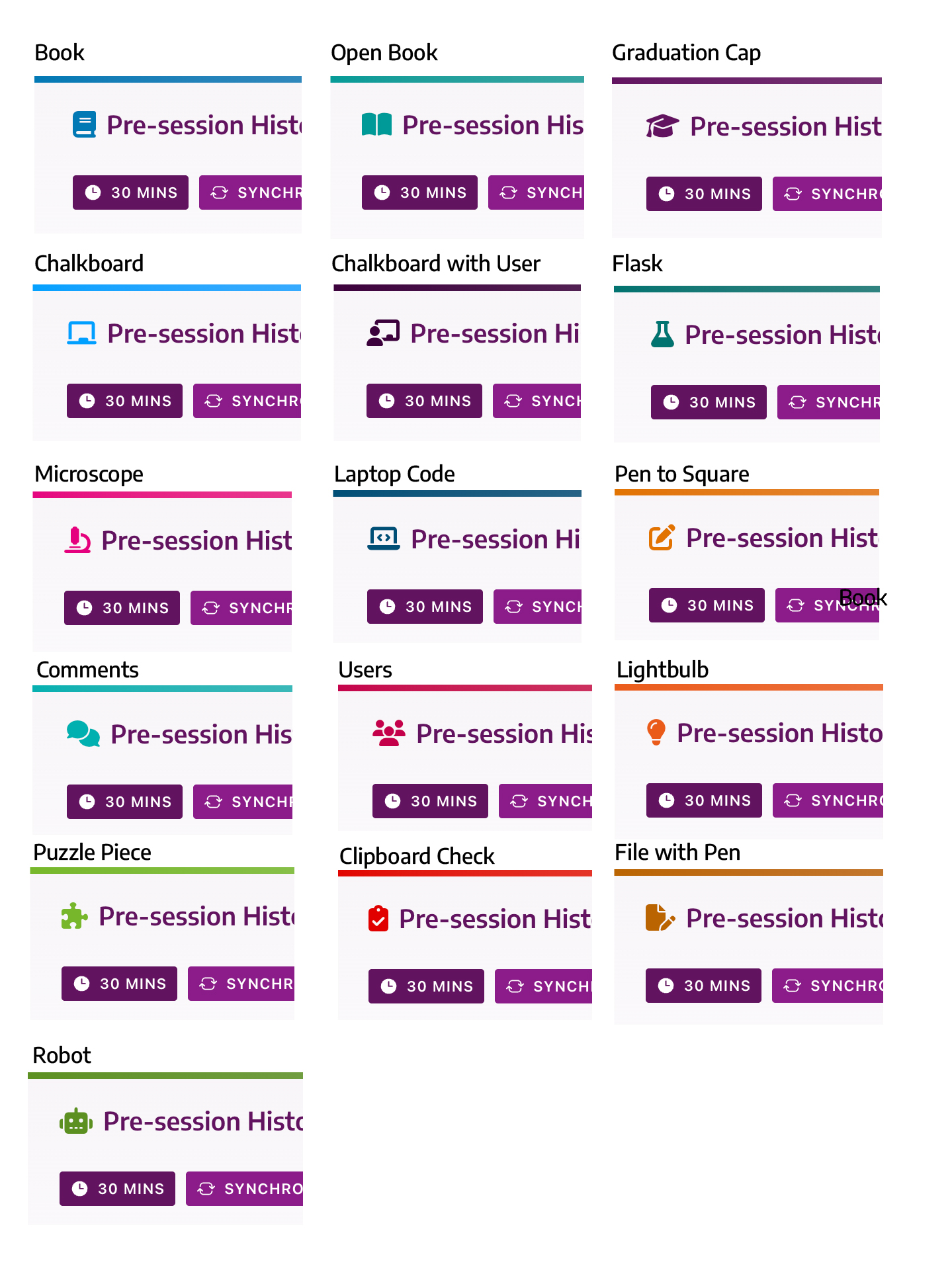
Start by entering a descriptive title for your new activity. You can then choose an icon to sit next to the title. To allow you to differentiate activities, there are a selection of icons availiable, and they each have associated colours.
You can also change icon from the module page, letting you quickly find the right icon for your activity. The full list of icons are detailed at the end of the guide.

Why can’t I choose my own colour? – Associating colours and icons to each other means that learners who can’t see colour, or are using a screen filter or other assistive technology which changes colours can still see, and benefit from the difference on the screen.
After you’ve selected a title and icon, consider adding learning objectives, these let learners know what they’re expected to know after completing this activity. These are added one per line, just press return after each separate objective.
Now think about how long the activity is expected to take, and enter it as a number. When displayed in the module, this gives learners an indication of how long the entire activity (which may include multiple Moodle activities) will take to complete, and help them to plan their time.
The penultimate setting is to choose the Learning Mode, whether it’s synchronous or asynchronous, choose one of these to suite (or leave not specified).
Finally you can choose one of the Laurillard Learning Types to associate with this activity. You can tag your activity as Acquisition Collaboration Discussion Investigation Practice or Production.
If you have a Week Summary in place, it will collate the different Learning Types and show the learner how they’ll be learning in that week too.
Note: You can use any combination of these or none at all if you wish, if you leave out Learning Types, they just don’t appear for learners, so you can use parts of this or none at all. It’s even possible to simply add the Activity summary as a header, with an icon, and then build your module as usual beneath it.
Icons